

- Discover
-
Products
Explore our products

Apps & Services
Helping you capture your thoughts and ideas.
-
Enterprise
Wacom for Enterprise

Signature
SolutionsReview, annotate, and sign digital documents with Wacom hardware and software solutions.

Creative Workflow Solutions
Enhance your creative process with professional pen displays, pen tablets and creative software integration.

Technology
SolutionsOptimization and efficiency technologies for the world's leading businesses.

Wacom Ink Technologies
A universal inking engine and ink layer framework which connects hardware, software and applications.

Creative Education
Solutions to help educators and students create, communicate and maximize the learning experience.
-
Education

Creative Education
Inspire your students to expand their creative horizons and prepare them for successful careers in art and design.

Wacom & Education
Supporting teachers and students to adapt to new learning environments.
- Support
- Store


Getting started with your Wacom Intuos Pro
Wacom Intuos Pro offers you more natural creative control than ever before. Combined with the super-sensitive Wacom Pro Pen 2, our sleek tablet looks and feels amazing.
Like to start your projects on paper? The Paper accessory automatically converts paper sketches into digital files, as you draw. Perfect for your next creative breakthrough.


How to install the Wacom driver on your Mac - Troubleshooting
-

Install the Wacom driver on macOS 13
-

Install Wacom driver on macOS 13 – Adjusting security settings (Troubleshoot video 1)
-

Install Wacom driver on MacOS 13 – Driver Check and reset security settings (Troubleshoot video 2)
-

Uninstall Wacom driver on macOS 13 (Troubleshoot video 3)
-

How to register my Wacom device

Empareja tu Wacom Intuos Pro pequeño por Bluetooth®
Paso 1: abre la configuración de Bluetooth/preferencias en tu computadora.
Paso 2: oprime el botón redondo en tu Wacom Intuos Pro hasta que el led azul (cerca de dicho botón redondo) comience a parpadear.
Paso 3: en tu computadora, selecciona "Intuos Pro S" y luego "Emparejar".

Empareja tu Wacom Intuos Pro mediano o grande por Bluetooth®
Paso 1: asegúrate de que tu Wacom Intuos Pro está encendida, oprimiendo el botón de encendido en la parte lateral del dispositivo.
Paso 2: abre la configuración de Bluetooth/preferencias en tu computadora.
Paso 3: oprime el botón redondo en tu Wacom Intuos Pro hasta que el led azul (cerca del logotipo de Wacom) comience a parpadear.
Paso 4: en tu computadora, selecciona "Bluetooth Intuos Pro" y luego "Emparejar".

Set up your Wacom Pro Pen 2
See how to customize the shortcut buttons and pressure levels on your Wacom Pro Pen 2.
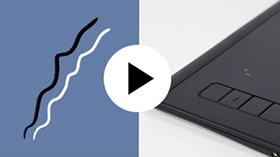
Set ExpressKeys™
Customizable ExpressKeys™ provide quick and easy shortcuts for common tasks.
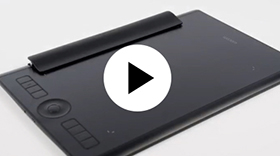
Customize with optional accessories
Personalize your Wacom Intuos Pro to your preference with Texture Sheets* and Pen Nibs.
*Sold separately for medium and large sizes only.
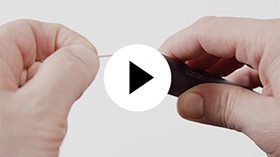
Nib replacement.

Create your Wacom ID
- Register products and redeem bundled software.
- Be the first to know exciting Wacom promotions and other news.
- Get free tutorials from creative experts, and more.

Make sure your Wacom Intuos Pro is connected to your PC or Mac using the USB cable.

Open your Wacom Desktop Center. Select My Devices/Intuos Pro and click on the blue registration field.

Sign-in or create your Wacom ID.

Your Wacom Intuos Pro will be automatically recognized.

Have a Wacom Intuos Pro Paper Edition?*
Setup the Wacom Inkspace App and learn more about paper sketching with your Wacom Intuos Pro.
*Available for medium and large sizes only.
Add the extras anytime
To customize how you work even further, Wacom Intuos Pro is compatible with a range of accessories.
Recommendations and guidelines for cleaning your Wacom product
All Wacom products can be safely cleaned with 70 or 75 percent isopropyl alcohol (rubbing alcohol) when applied to a soft lint free cloth. Lightly wipe the moistened cloth on the hard, nonporous surfaces of your Wacom product, such as the display, or other exterior surfaces. Don't use bleach. Avoid getting moisture in any opening, and don't submerge your Wacom product in any cleaning agents. See below for additional tips or please contact your regional Wacom customer service team.

